If your Google Business Profile has dozens of 1-star and 2-star reviews, reading every single one manually to find which ones actually violate policy is slow, error-prone, and exhausting. Most business owners either flag everything (which trains Google to ignore them) or do nothing at all.
There is a better way and it starts with understanding that bulk review removal is not about quantity. It is about precision at scale.
This guide covers exactly how to analyze large volumes of low star reviews, identify the ones that qualify for removal, flag them correctly the first time, and escalate the ones that get rejected. This is the same process local SEO agencies use to manage review removal across multiple Google Business Profiles simultaneously.
Why Low Star Reviews Are Not All Equal
Before flagging anything, you need to understand the most important distinction in Google review removal:
Negative but genuine = stays up forever Negative and policy-violating = can be removed
A 1-star review that says "food was cold and service was slow" is a genuine customer opinion. Google protects it regardless of how unfair or exaggerated it seems. Flagging it wastes your reports and reduces your credibility with Google's review team.
A 1-star review that says "this place employs criminals" with no factual basis, or one posted by a reviewer who has never visited your location, is a policy violation. That one can be removed but only if you flag it correctly with the right category and supporting evidence.
Google's AI detection for coordinated fake review campaigns improved significantly in 2026, now catching patterns across IP addresses, device fingerprints, and posting behavior that humans would miss. This means the system is smarter but your flagging strategy needs to be smarter too.
The 7 Violation Categories Google Actually Uses
Google's current "Report review" interface has exactly 7 options. Knowing which category to select is the single biggest factor in whether your flag succeeds or fails.
1. Low Quality Information
Covers off-topic content, spam, promotional material, gibberish, or reviews that describe no actual customer experience. This is the broadest and most commonly applicable category for fake reviews.
Applies to:
- Reviews from people with no record of visiting your business
- Vague 1-star reviews with no specific details about any service
- Reviews mentioning services you do not offer
- Identical or near-identical review text appearing across multiple businesses
Signal to check: Click the reviewer's profile. If they have zero or one total review ever posted, that is a strong spam indicator.
2. Profanity
Reviews containing swear words, masked profanity, or sexually explicit language. Straightforward to identify and one of the faster categories for Google to act on.
3. Harmful
Content that encourages or glorifies violence, provides instructions for dangerous acts, or targets people connected to the business with graphic language.
4. Bullying or Harassment
Reviews that personally target a named staff member or owner rather than commenting on the business itself. The key distinction is personal attack versus business criticism.
Applies to: "Sarah the receptionist is a disgusting person and I hope something bad happens to her" this targets an individual, not the business experience.
Does not apply to: "The receptionist was rude and unhelpful" — this is business feedback about a service interaction.
5. Discrimination or Hate Speech
Any content that attacks people based on race, ethnicity, religion, gender, sexual orientation, disability, or other protected characteristics.
6. Personal Information
Reviews that expose private details phone numbers, home addresses, or sensitive personal data about staff or owners.
7. Not Helpful
Extremely vague reviews, star-only ratings with no text, or content that gives future customers no useful information about an actual experience.
Important: This category has a lower removal rate than the others. Use it for genuinely contentless reviews, not as a fallback when you cannot identify a stronger violation.
How to Analyze Reviews in Bulk
Manually reading through 100, 200, or 500 reviews to find policy violations is not practical for agencies or multi-location businesses. The process breaks down at scale.
The manual process for small volumes (under 50 reviews):
- Filter to 1-star and 2-star reviews in your Google Business Profile dashboard
- For each review, check the reviewer's profile total reviews posted, profile photo, account age
- Check if the review describes a specific, verifiable experience at your business
- Check for exact violation language against the 7 categories above
- Document findings in a spreadsheet: reviewer name, date, violation category, confidence level, evidence needed
The automated process for larger volumes:
For businesses with hundreds of reviews, or agencies managing multiple Google Business Profiles, MyLocalGuard automates the entire analysis step. Paste your GBP URL and the tool scans every review against all 7 Google report categories, returns a confidence score per violation, and generates the exact flagging instructions and evidence checklist for each flaggable review.
This reduces a 3-hour manual audit to under 60 seconds and removes the human error that leads to incorrect category selection.
Your first 3 scans are free no credit card required.
The Flagging Process: Step by Step
Step 1 - Flag directly on Google Maps
- Open Google Maps and search for the business
- Navigate to the Reviews section
- Click Sort → Lowest rating to work through flaggable reviews efficiently
- Find the target review
- Click the three-dot menu (⋮) next to the review
- Select "Report review"
- Choose the most accurate violation category
- Submit
For bulk flagging: Work through all flaggable reviews in a single session. Flag each one separately with its specific correct category do not use the same category for every review if the violations differ.
Step 2 - Wait the standard review period
- Automated spam detection: 24–48 hours
- Standard manual review: 3–7 days
If the review is still visible after 7 days, proceed to Step 3.
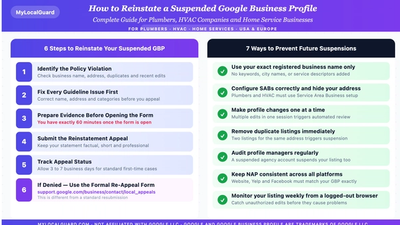
Step 3 — Submit a formal appeal with evidence
Go to Google's official escalation form: support.google.com/business/workflow/9945796
Include in your appeal:
- The exact phrase from the review that triggers the violation
- The specific violation category and why it applies
- Your supporting evidence (see the Evidence section below)
- Your Google Business Profile URL
Generic appeals like "this review is fake" are rejected almost every time. Specific appeals that quote the offending text and explain exactly which policy it violates have a significantly higher success rate.
Step 4 — Escalate to the Google Business Profile Help Community
If the appeal form does not resolve it, post in: support.google.com/business/community
Include your Case ID from the escalation form, the business name and GBP URL, and a clear summary of the violation with evidence. Google's Trust and Safety team investigates submissions to the help community, and businesses that document patterns with screenshots and timing information strengthen their case for bulk removal.
Recognizing Coordinated Attacks and Review Bombing
Single fake reviews and coordinated attacks require different responses.
Bad actors post fake 1-star or 2-star reviews and then contact the business demanding money, gift cards, or free services to remove them — a criminal extortion scheme that has grown significantly in 2025 and 2026.
Signs your low star reviews are part of a coordinated attack:
- Multiple 1-star reviews posted within a 24–48 hour window
- Reviewers with zero or one total review ever posted
- Similar or identical wording across multiple reviews
- Reviews appearing immediately after a staff dispute, competitor opening, or public controversy
- Reviews mentioning services you do not offer or describing situations that never occurred
What to do:
Report each review individually as spam, make sure you are logged into the correct business account, and document the pattern with screenshots showing timing and repetition this evidence is critical if an appeal is needed later.
If you receive a payment demand: Do not pay and do not negotiate. Submit proof using Google's Review Abuse Reporting Tool and preserve all evidence including screenshots of reviews and any messages showing dates, usernames, phone numbers, or email addresses.
What Evidence to Submit for Higher Removal Success
Submitting the right evidence is the difference between a rejected appeal and a removed review. Match your evidence to the violation type:
For fake or fabricated experience reviews:
- CRM export or customer database showing no record of this person
- Sales or transaction records for the review date showing no purchase by this reviewer
- Appointment or booking logs confirming no visit
- Point-of-sale records for the relevant time period
For competitor attacks:
- Screenshot of the reviewer's Google profile showing they also reviewed your competitors — especially if they gave competitors 5 stars on the same day
- LinkedIn or social media showing their affiliation with a competing business
For harassment of a specific staff member:
- Record of the review text targeting the named individual
- Any prior communications showing the targeted nature of the attack
For defamation (specific false factual claims):
- Documentary proof disproving the specific claim — licenses, certifications, inspection records, receipts, service completion records
For a full evidence checklist organized by violation type, see the MyLocalGuard Evidence Guide.
Why Most Flags Get Rejected
Understanding the three most common failure points saves significant time:
Wrong violation category Selecting "Not helpful" for a review containing a personal attack, or "Bullying or harassment" for general business criticism, results in rejection. Use the most specific and accurate category available.
No supporting context A flag with no explanation gives Google's team nothing to evaluate. Always include a brief, specific explanation in the details field — quote the exact phrase and name the policy it violates.
Flagging legitimate negative reviews Google compares reviews to its user contributed content policies and prohibited content rules, and reviews that represent genuine opinions — even harsh or unfair ones — are not removed. Flagging these reviews repeatedly reduces the weight Google gives to all of your future reports. Only flag reviews with clear, documentable policy violations.
How Low Star Reviews Affect Your Local SEO Rankings
Removing policy-violating low star reviews is not only about your star rating — it directly affects your local SEO performance.
Reviews now serve multiple roles simultaneously: they are a ranking signal for Google Maps, they help Google determine who to trust in AI Overviews, they influence whether customers choose your business over a competitor, and they shape your online reputation across search.
The Google Maps Local Pack drives the majority of calls for service businesses, and your reviews impact your ranking through review velocity, review recency, review rating, review detail, and sentiment analysis.
A cluster of fake 1-star reviews does not just hurt your rating — it suppresses your visibility in the Local Pack and reduces your chances of appearing in Google AI Overviews. Removing them restores both your rating and your ranking signals.
Summary
Removing low star Google reviews in bulk comes down to three things: identifying the right reviews, flagging them with the correct category, and submitting specific evidence when the initial flag is rejected.
The businesses and agencies that succeed at this do not flag everything — they flag precisely. They know which reviews cross the line from negative feedback into policy violation, and they build an evidence trail before submitting anything.
For businesses managing large review volumes or multiple Google Business Profiles, start with an automated bulk analysis to identify exactly which reviews qualify for removal. Then work through the flagging process systematically with the correct category and supporting documentation for each one.
The full removal process from initial flag to escalation is covered in our step-by-step guide at MyLocalGuard. Your first 3 scans are free.
Not affiliated with, endorsed by, or connected to Google LLC. Google, Google Maps, and Google Business Profile are trademarks of Google LLC.